Debug language server
Use the :CocList services command to open the services list. Each service shows its id, state, and filetypes.
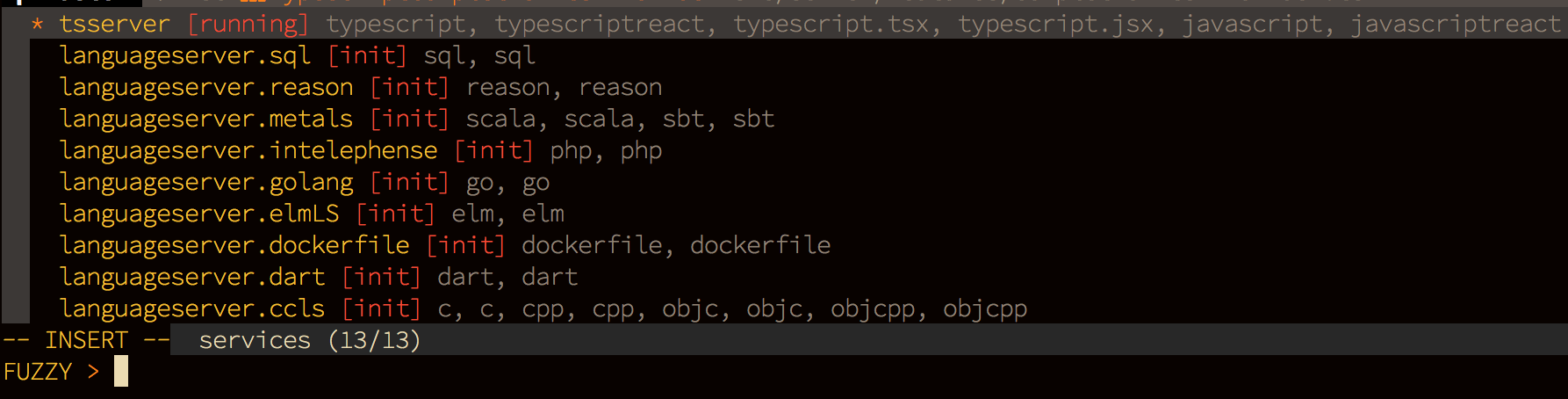
If a service id starts with languageserver, it comes from the languageserver configuration in coc-settings.json; otherwise, it comes from a coc.nvim extension.
A service does not start when it doesn't match a buffer's filetype. Use :CocCommand document.echoFiletype to get the filetype detected by coc.nvim for the current buffer.
As in VS Code, each language server has its own output channel. The output channel can be opened with:
:CocCommand workspace.showOutput
To log all LSP communication in an output channel, set trace.server to verbose in your coc-settings.json.
For example, to log all LSP communication from tsserver in the coc-tsserver extension, use:
"tsserver.trace.server": "verbose",To log all LSP communication from a user-defined language server, add a trace.server entry to your language server configuration:
"languageserver":{
   "ccls": {
    "command": "ccls",
    "filetypes": ["c", "cpp", "objc", "objcpp"],
    "trace.server": "verbose",
    "initializationOptions": {
      "cacheDirectory": "/tmp/ccls"
    }
  }
}
However, the output of LSP communication is very terse. You can use LSP Log Parser to parse/view/filter the logs:

You can use Google Chrome to debug a language server that communicates over node IPC (the language server must be implemented in JavaScript, like the CSS language server from coc-css).
First, add execArgv to the language server settings:
"css.execArgv": ["--nolazy", "--inspect-brk=6045"]
After the css service starts, open the URL chrome://inspect in Chrome.
Make sure the Discover network targets option is checked and the address is added to Target discovery settings; the debugging target will then appear.
Note: It's recommended to install coc-json for automatic JSON completion.